Saving Wealthsolver and Risk Researcher Modelling as a File Note
Overview
As a best practice, you should always save any research you have completed for the client in CWT. In this guide, we will be going through how you can save your research from Risk Researcher and Wealthsolver to Filing, this will minimise time taken to maintain files electronically and will provide a uniform Best Practice approach across practices.
Risk Researcher
Complete the comparison scenario like you normally would by entering the client’s existing insurance policies and adding the client’s cover requirement in the Details screen.
Selecting the research reports
In the Premium Estimate screen, select the comparing products using the tick boxes on the left to the risk provider logo.
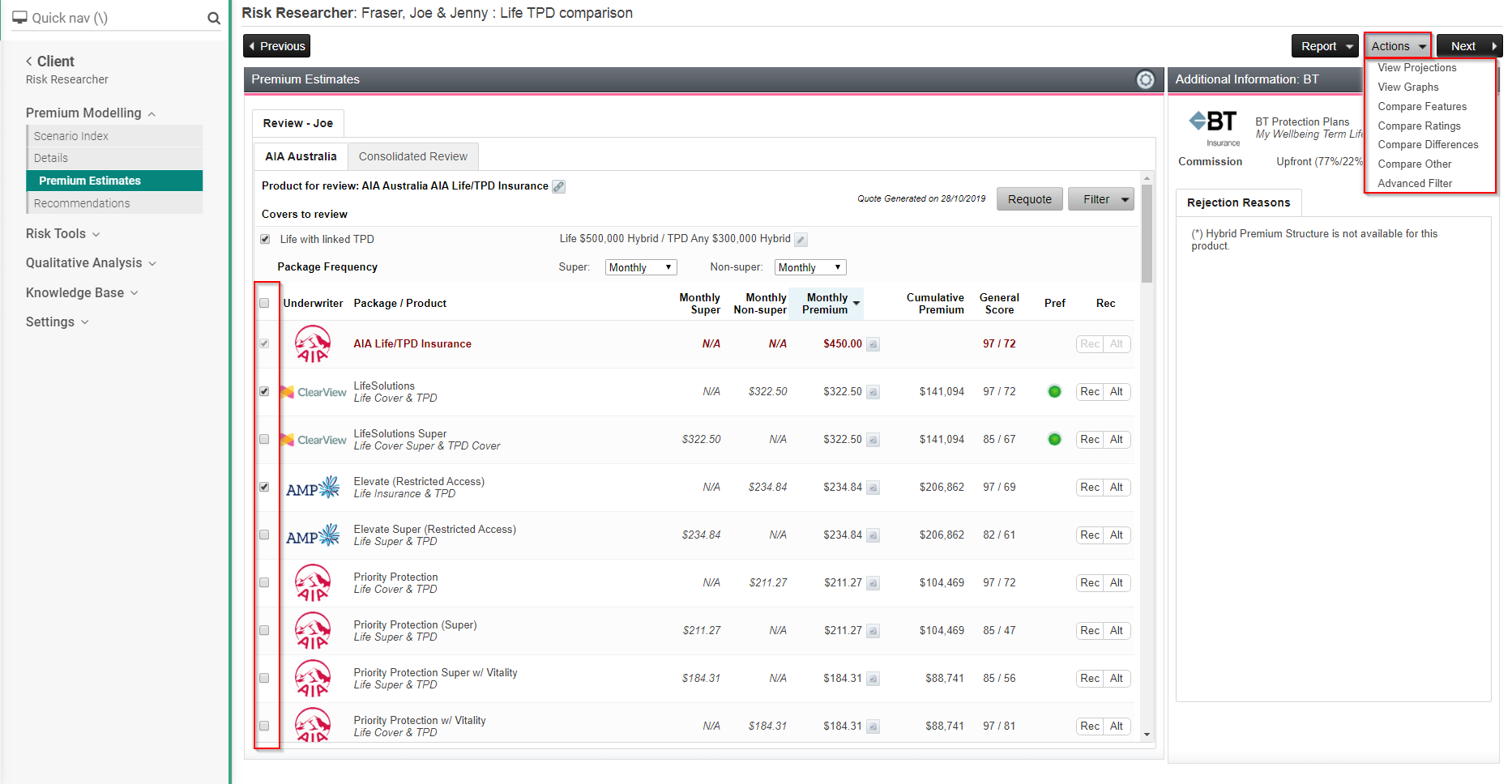
Once you have selected the comparing products, click on Action > select the report(s) that you would like to generate.
Saving the research reports
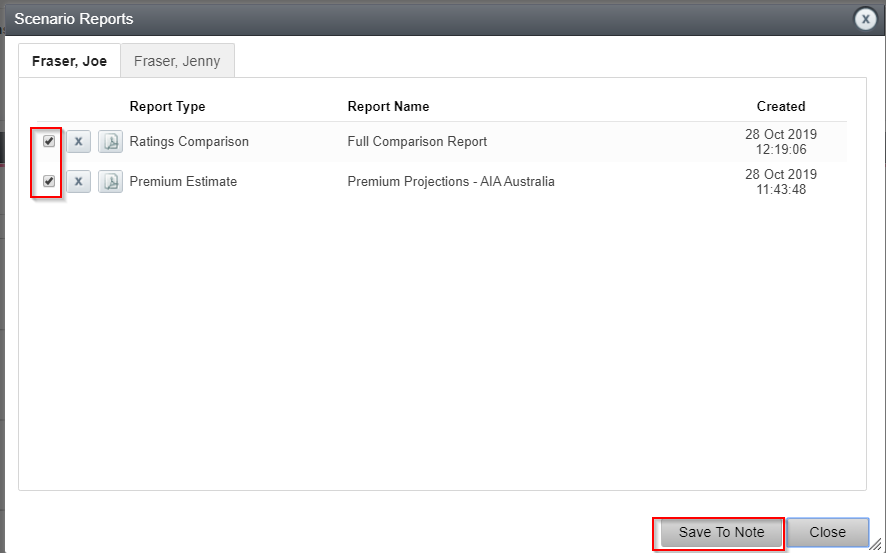
In the Recommendations screen, click on Action > Scenario Report

Select the tick boxes for the reports which you would like to save to client filing, click Save To Note. A confirmation will be prompted when the report has been successfully saved to filing.
WealthSolver
Complete the comparison scenario like you normally would by entering the client’s existing superannuation, pension and investments in Current Situations and adding the Proposals in the Details screen.
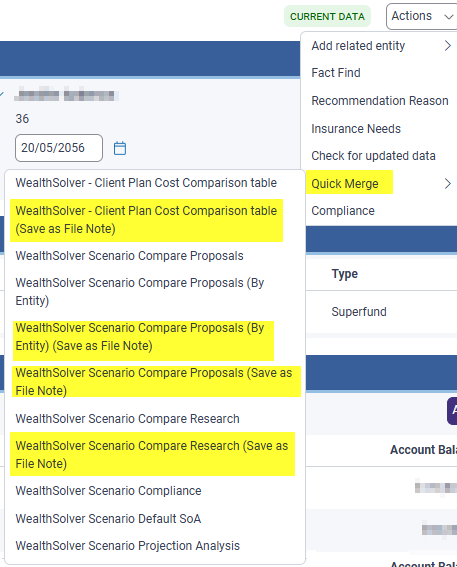
Once complete, you can then access the reports using the 'Actions' menu at the top of your screen, then select 'Quick Merge'. From here you can then see for most reports there is a standard report, then a second labelled '(Save as File Note)'. When selecting the 'Save as File Note' version it will automatically create a fine note against your client with the attached wealthsolver comparison report, also updating the Type and Subtype: